DNS 生效慢 / 域名还指向旧服务器?排查与解决
改完 DNS 后站点没变,是最常见也最恼人的问题。关键分清:是「配置错了」还是「缓存还没过期」——两者的解法完全不同。The most common DNS headache: changed nameservers, same old site. The key is separating a config error from cache lag — the fixes differ.
第一步:分清配置问题还是缓存问题Step 1: config or cache?
最直接的办法是绕过本地解析,直连权威/公共 DNS 拿 IP,再手动指定该 IP 访问站点。如果这样能看到新内容,说明配置没问题,纯粹是本地缓存。Bypass local resolution, get the IP from public DNS, then force that IP. If you see the new site, your config is fine — it's cache.
命令示例:curl --resolve 你的域名:443:CloudflareIP https://你的域名/Example: curl --resolve yourdomain:443:CFIP https://yourdomain/
第二步:对比不同解析器的结果Step 2: compare resolvers
- nslookup 域名(本地)看你的系统/路由器给什么
- nslookup 域名 8.8.8.8看 Google 公共 DNS 给什么
- nslookup 域名 1.1.1.1看 Cloudflare 公共 DNS 给什么
第三步:清缓存Step 3: flush caches
- Windowsipconfig /flushdns
- macOS/Linuxsudo dscacheutil -flushcache(mac)/ 重启本地服务
- 路由器关机重启,或在管理页清 DNS 缓存
第四步:如果清完还是旧的Step 4: still stale?
把本地 DNS 改成公共 DNS(如 8.8.8.8 / 1.1.1.1),绕开路由器缓存。这是最彻底、一次生效的办法。Switch your local DNS to public resolvers (8.8.8.8 / 1.1.1.1) to bypass the router cache. Most reliable fix.
排查清单Checklist
- 配置层NS 已改?CNAME 正确?区域状态 active?
- 解析层公共 DNS 是否已返回新 IP?
- 缓存层本地/路由器是否已清?
- 验证层强制指定新 IP 访问,看到的是新内容吗?
为什么 HTTP 200 也可能是旧页面Why HTTP 200 can still be the old site
这是最容易误判的一点:域名停放页往往也返回 HTTP 200 状态码,所以「能打开」不等于「是新站」。判断依据应该是页面实际内容(标题、关键文字),而不只是状态码。A key trap: parked pages also return HTTP 200, so “it opens” is not the same as “it is the new site”. Check actual page content, not just the status code.
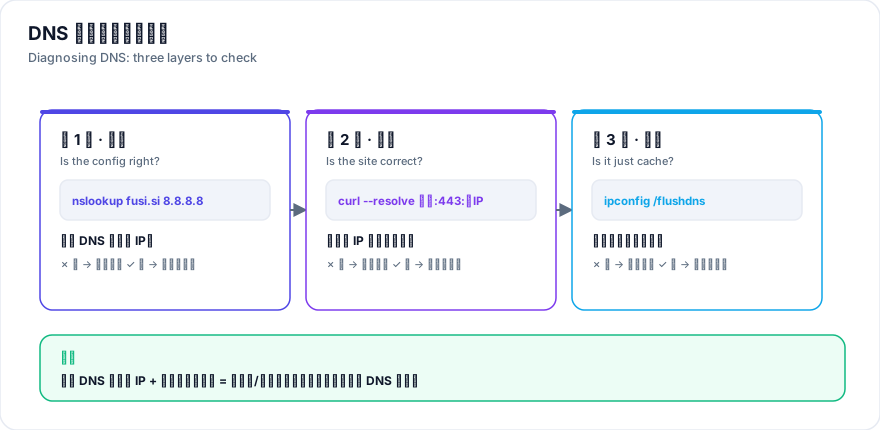
三条命令定位问题层Three commands, three layers
# 1) 本地解析(看有没有本地缓存)
nslookup fusi.si

2) 公共解析(看全球是否已生效)
nslookup fusi.si 8.8.8.8

3) 直连新 IP(看站点内容是否正确)
curl --resolve fusi.si:443:新IP https://fusi.si/
三条命令依次跑,就能明确问题出在「本地缓存」还是「服务端配置」。如果公共解析已返回新 IP、直连也是新内容,那就纯粹是本地缓存,清掉即可。Run these in order to tell "local cache" from "server config". If public DNS returns the new IP and direct-connect shows the new site, it is purely local cache.
各平台清缓存方法Flushing per platform
- WindowsWindows:
ipconfig /flushdns - macOSmacOS:
sudo dscacheutil -flushcache; sudo killall -HUP mDNSResponder - LinuxLinux:
sudo systemd-resolve --flush-caches - 路由器Router:关机重启,或管理页清 DNS 缓存(最常见的隐藏缓存源)
- 浏览器Browser:清除 DNS 缓存项,或用无痕窗口验证
根治:改用公共 DNSThe permanent fix
如果清了本机缓存还是旧的,说明是路由器缓存。把网卡 DNS 改成 8.8.8.8 / 1.1.1.1 即可绕开,一次生效长期有效。注意这一步需要管理员权限。If it stays stale after flushing, the router is caching. Switch your adapter DNS to 8.8.8.8 / 1.1.1.1 (requires admin).
真实案例:一次「以为没上线」的误判Real case: the false not-live alarm
本站域名切换 NS 后的第 3 天,访问 fusi.si 仍看到 Hostinger 停放页,一度以为部署失败。实际排查发现:公共 DNS 已返回 Cloudflare IP、直连新 IP 也已是新站——纯粹是本机/路由器缓存了旧委派。把网卡 DNS 改为 8.8.8.8 / 1.1.1.1 后立即恢复。Three days after the NS switch, the site still showed a Hostinger parked page and looked like a failed deploy. Public DNS already returned the new Cloudflare IP and direct-connect showed the new site — it was purely local/router cache. Switching adapter DNS to 8.8.8.8 / 1.1.1.1 fixed it instantly.
- 最大教训Biggest lesson:HTTP 200 不代表是新站——停放页也返回 200,判断要看页面实际标题与内容。
- 验证动作The verifying move:用
curl --resolve直连新 IP,一条命令就能区分「配置问题」与「缓存问题」。